Downloading pipelines for offline use
You may need to run an nf-core pipeline on a server or HPC system without internet access. In this case, fetch the pipeline files first, then manually transfer them to your system.
The download helper tool makes this process easier and ensures accurate retrieval of correctly versioned code and software containers.
The nf-core pipelines download command downloads both the pipeline code and the institutional nf-core/configs files.
It can also optionally download any required Singularity image files.
If you run the command without arguments, it will interactively prompt you for the required information. If all option flags are supplied, it will run without user input.
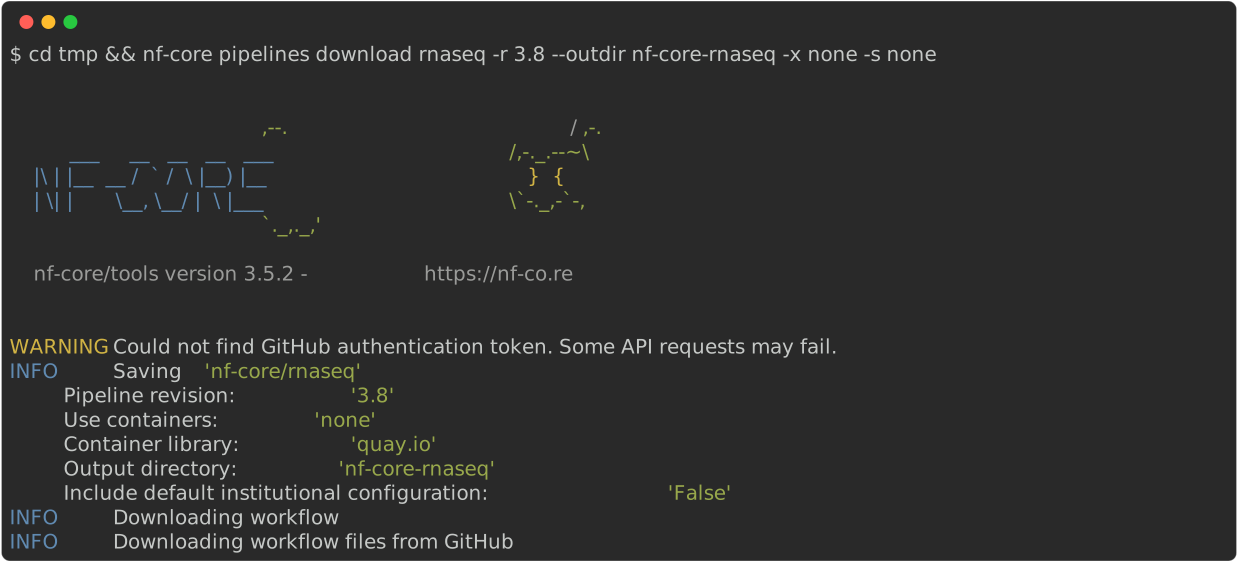
Once downloaded, you will see something like the following file structure for the downloaded pipeline:
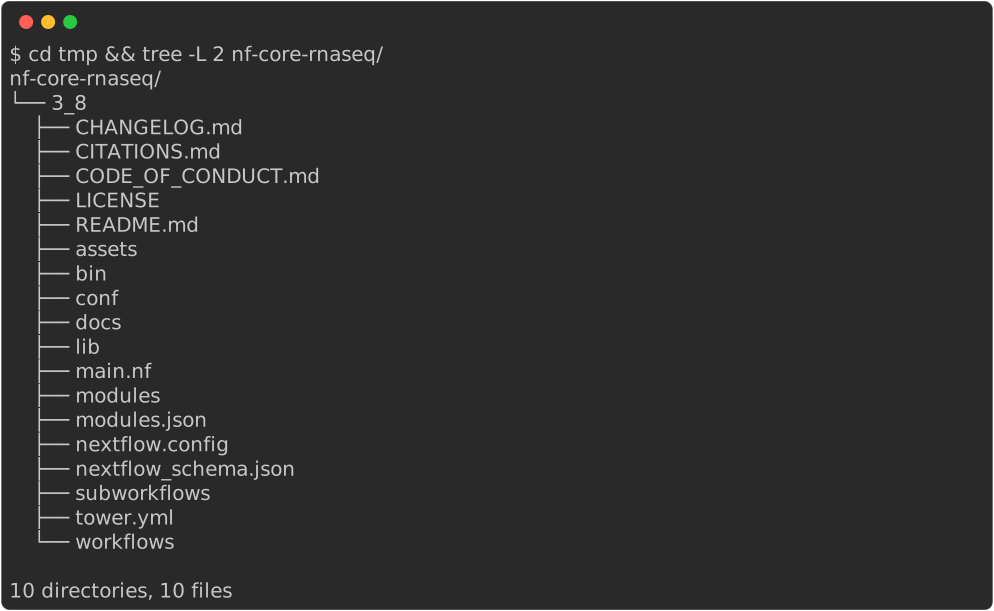
You can run the pipeline by simply providing the directory path for the workflow folder to your nextflow run command:
nextflow run /path/to/download/nf-core-rnaseq-dev/workflow/ --input mydata.csv --outdir results # usual parameters hereIf you downloaded Singularity container images, you will need to use -profile singularity or have it enabled in your config file.
Downloaded nf-core configs
The pipeline files are automatically updated (params.custom_config_base is set to ../configs) to make the local copy of institutional configs available when running the pipeline.
Using -profile <name> should work if available within nf-core/configs.
This option is not available when downloading a pipeline for use with Seqera Platform because the application manages all configurations separately.
Downloading container images
If you are using a container system for running your pipeline, the nf-core pipelines download command can also fetch the required container images.
Currently supported container systems are Singularity (Apptainer), Docker, and Podman.
Select <singularity/docker> in the prompt or specify --container-system <singularity/docker> in the command.
Your archive or target output directory will then also include a separate folder <singularity/docker>-containers.
For Podman images, use the docker option and see details in the Docker section below.
If the download speeds are much slower than your internet connection is capable of, you can set the number of simultaneous downloads with the --parallel-downloads parameter.
How pipeline containers are found
The download command internally uses nextflow inspect to find container images.
This Nextflow subcommand parses the pipeline code, both configs and scripts, and figures out what container is used in each module.
To specify what container system to fetch containers for and to include containers required for pipeline tests, the nextflow inspect command is run with the flag -profile <singularity/docker>,test,test_full.
The command then produces a JSON file containing URIs for each container of interest in the pipeline.
Singularity images
If you select to download Singularity images, the downloaded workflow files are again edited to add the following line to the end of the pipeline’s nextflow.config file:
singularity.cacheDir = "${projectDir}/../singularity-images/"This tells Nextflow to use the singularity-containers directory relative to the workflow for the singularity image cache directory.
All images should be downloaded there, so Nextflow will use them instead of trying to pull from the internet.
Singularity cache directory
We highly recommend setting the $NXF_SINGULARITY_CACHEDIR environment variable on your system, even if that is a different system to where you will be running Nextflow.
If found, the tool will fetch the Singularity images to this directory first before copying to the target output archive / directory. Any images previously fetched will be found there and copied directly - this includes images that may be shared with other pipelines or previous pipeline version downloads or download attempts.
If you are running the download on the same system where you will run the pipeline (for example, a shared filesystem where Nextflow will not have internet access later), you can choose to only use the cache via a prompt or CLI option --container-cache-utilisation amend.
This instructs nf-core pipelines download to fetch all Singularity images to the $NXF_SINGULARITY_CACHEDIR directory but does not copy them to the workflow archive or directory.
The workflow config file is not edited.
When you later run the workflow, Nextflow will use the cache folder directly.
If you are downloading a workflow for a different system, you can provide information about the contents of its image cache to nf-core pipelines download.
To avoid unnecessary container image downloads, choose --container-cache-utilisation remote and provide a list of already available images as a plain text file to --container-cache-index my_list_of_remotely_available_images.txt.
To generate this list on the remote system, run find $NXF_SINGULARITY_CACHEDIR -name "*.img" > my_list_of_remotely_available_images.txt.
The tool will then only download and copy images that are missing on the remote system into your output directory.
How Singularity image downloads work
The list of Singularity containers found in the pipeline by nextflow inspect is processed in the following order:
- If the target image already exists, nothing is done (eg. with
$NXF_SINGULARITY_CACHEDIRand--container-cache-utilisation amendspecified) - If found in
$NXF_SINGULARITY_CACHEDIRand--container-cache-utilisation copyis specified, they are copied to the output directory - If they start with
httpthey are downloaded directly within Python (default 4 at a time, you can customise this with--parallel-downloads) - If they look like a Docker image name, they are fetched using a
singularity pullcommand. Choose the container libraries (registries) queried by providing one or multiple--container-libraryparameter(s). For example, if you callnf-core pipelines downloadwith-l quay.io -l ghcr.io -l docker.io, every image will be pulled fromquay.iounless an error is encountered. Subsequently,ghcr.ioand thendocker.iowill be queried for any image that has failed before.- This requires Singularity/Apptainer to be installed on the system and is substantially slower
Note that compressing many GBs of binary files can be slow, so specifying --compress none is recommended when downloading Singularity images that are copied to the output directory.
Docker and Podman images
In addition to Singularity images, the download command also can find and download a pipeline’s Docker images.
The support for Docker/Podman images is however less configurable than for Singularity images:
In the current version of the command the Docker image download only support the copy option for the --container-cache-utilisation flag.
An implicit cache in the form of Docker images available in the Docker daemon on the download machine is however available (see details below.
The flag --container-cache-index is not supported either, the command will always fetch all the Docker images in the list produced by nextflow inspect.
How the Docker/Podman image downloads work
Downloading of Docker works slightly different from downloading of Singularity images:
Docker images are always pulled into the Docker daemon on the machine you are downloading from using the docker image pull command.
This means that the Docker images are not directly available as files as Singularity images are.
To allow transfer to an offline environment Docker instead has the docker image save command: this command takes a Docker image available on your machine and saves it as a TAR archives which can easily be transferred to an offline machine.
Once transferred to the offline machine, the images can be loaded into the Docker daemon using the docker image load command.
Alternatively, the Docker image TAR archives can be loaded into Podman using the podman load command.
The download command automates the creation of TAR archives: it pulls and saves all container images found by nextflow inspect, and puts them in docker-images in the archive/target folder.
To allow for easy loading into Docker/Podman on the offline machine the command automatically creates two Bash scripts: docker-load.sh and podman-load.sh which when run inside the docker-images folder on the offline machine will load all images found in the folder.
Adapting downloads to Seqera Platform
Seqera Platform (formerly “Nextflow Tower”) provides a graphical user interface to oversee pipeline runs, gather statistics, and configure compute resources.
While pipelines added to Seqera Platform are preferably hosted at a Git service, you can also provide them as disconnected, self-reliant repositories for premises with restricted network access.
Use the --platform flag to download the pipeline in an appropriate form.
Subsequently, the *.git folder can be moved to its final destination and linked with a pipeline in Seqera Platform using the file:/ prefix.
Even without access to Seqera Platform, you can run pipelines downloaded with the --platform flag if you specify the absolute path: nextflow run -r 2.5 file:/path/to/pipelinedownload.git.
Downloads in this format allow you to include multiple revisions of a pipeline in a single file, but require that you always explicitly specify the revision (for example, -r 2.5).