Linting a workflow
The lint subcommand checks a pipeline against all nf-core community guidelines.
This runs the same tests used in automated continuous integration.
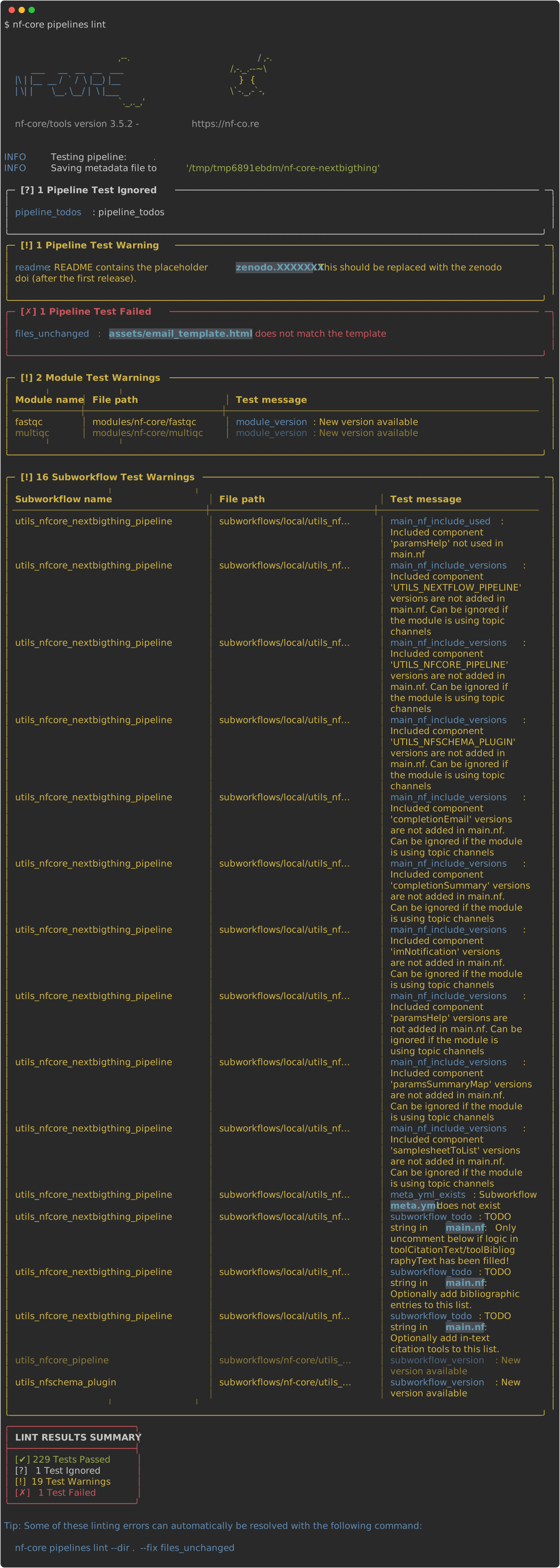
The output looks like this:
Use the -k or --key flag to run only named tests for faster debugging, for example: nf-core pipelines lint -k files_exist -k files_unchanged.
The command lints the current working directory by default.
To specify another directory, use --dir <directory>.
Linting documentation
Each test result name on the left is a terminal hyperlink. In most terminals you can ctrl + click ( cmd + click) these links to open documentation specific to this test in your browser.
Alternatively visit https://nf-co.re/tools/docs/latest/pipeline_lint_tests/ and find your test to read more.
Linting config
You can disable certain lint tests, especially if you’re using nf-core/tools with your own pipeline outside of nf-core.
Add a tools config file called .nf-core.yml to your pipeline root directory (previously: .nf-core-lint.yml).
List the tests you want to disable and set them to False, for example:
lint:
  actions_awsfulltest: False
  pipeline_todos: False
Some lint tests allow greater granularity, for example skipping a test only for a specific file. This is documented in the test-specific docs but generally involves passing a list, for example:
lint:
  files_exist:
    - CODE_OF_CONDUCT.md
  files_unchanged:
    - assets/email_template.html
    - CODE_OF_CONDUCT.md
List all configurations for the nf-core pipelines lint command under the lint: field in the .nf-core.yml file.
This file is also used for configuration of other commands.
Automatically fix errors
Some lint tests can automatically fix issues they find.
Use the --fix flag to enable this.
The pipeline must be a git repository with no uncommitted changes.
This allows you to review and undo automated changes with git checkout . if needed.
Lint results output
The output from nf-core pipelines lint is designed for command line viewing and is deliberately succinct.
View all passed tests with --show-passed or generate JSON or markdown results with the --json and --markdown flags.